
Take Easy
Read EPUB and TXT books on Read Pico, transfer files over USB or Wi-Fi, use weather, notes, and a Pomodoro timer, and customize reading layouts and the lock screen.
Thank you to takeeasy-cui for providing a system for Read Pico.
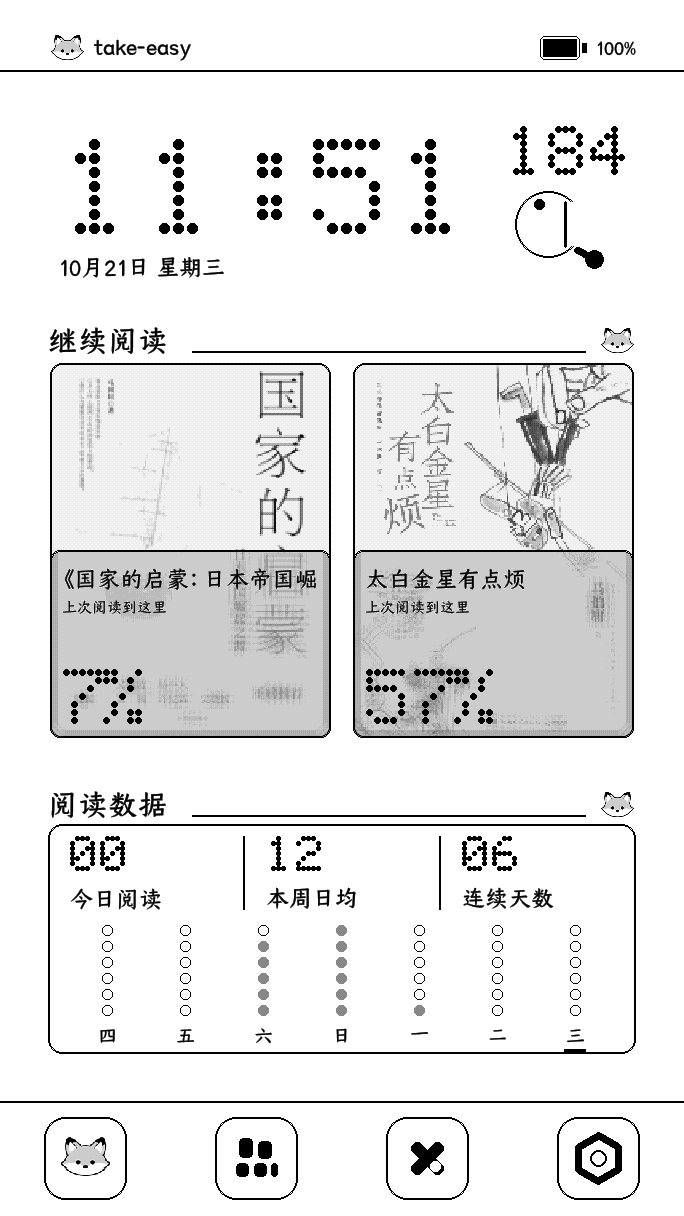
Take Easy is a third-party reading system for Read Pico, with a local library, Chinese text input, weather, and everyday tools. You can adjust reading layouts and the lock screen to suit your preferences.
Before you start
Prepare a sufficiently charged Read Pico, a computer running desktop Chrome or Edge, and a USB-C data cable. Close other webpages, flashing tools, or terminals using the device's serial port.
A FAT32-formatted microSD card is recommended for books and fonts. Back up important data before installation.
Installation replaces the current system. When updating Take Easy, leave “Erase device” (擦除设备) unchecked in the installation dialog to retain device settings and reading history. Checking it erases internal device data. Files on the microSD card are unaffected.
V1.0.2 changed the partition layout. When upgrading from an earlier version, the internal book storage is recreated, so books stored internally must be transferred again.
Install through the website
Open the installation page
Open the Take Easy website in desktop Chrome or Edge, then go to the online installation page. Check that page for the version and installation requirements.
Connect and install
Connect Read Pico with a USB data cable, click the connection button, and select the device's serial port in the browser dialog. Review the installation checklist and the “Erase device” option, then follow the prompts to install.
Keep USB connected, the page open, and the computer awake until installation finishes and the device restarts automatically. The input method dictionary is included; no separate import is needed.
If the serial port is missing, wake the device, keep USB connected, exit USB card-reader mode, and close other programs using the port. If necessary, enter BOOT mode through 设置 → 升级和恢复 (Settings → Upgrade and recovery) on the device, then try again.
Add books and fonts
Copy EPUB and TXT files to Books/ on the microSD card, and TTF or OTF fonts to Fonts/. Open a book from the bookshelf.
You can also enable USB file transfer on the device and copy files from a computer. For Wi-Fi transfer, enable it on the device, connect your phone or computer to the same network, and open the address shown on the device in a browser to upload. For hotspot transfer, follow the device's prompts to connect and upload.
The built-in font contains only some common Chinese characters. If characters appear as squares, add a font with full Chinese character coverage to Fonts/ and select it in the reading layout menu.
Main features
Local reading and layout
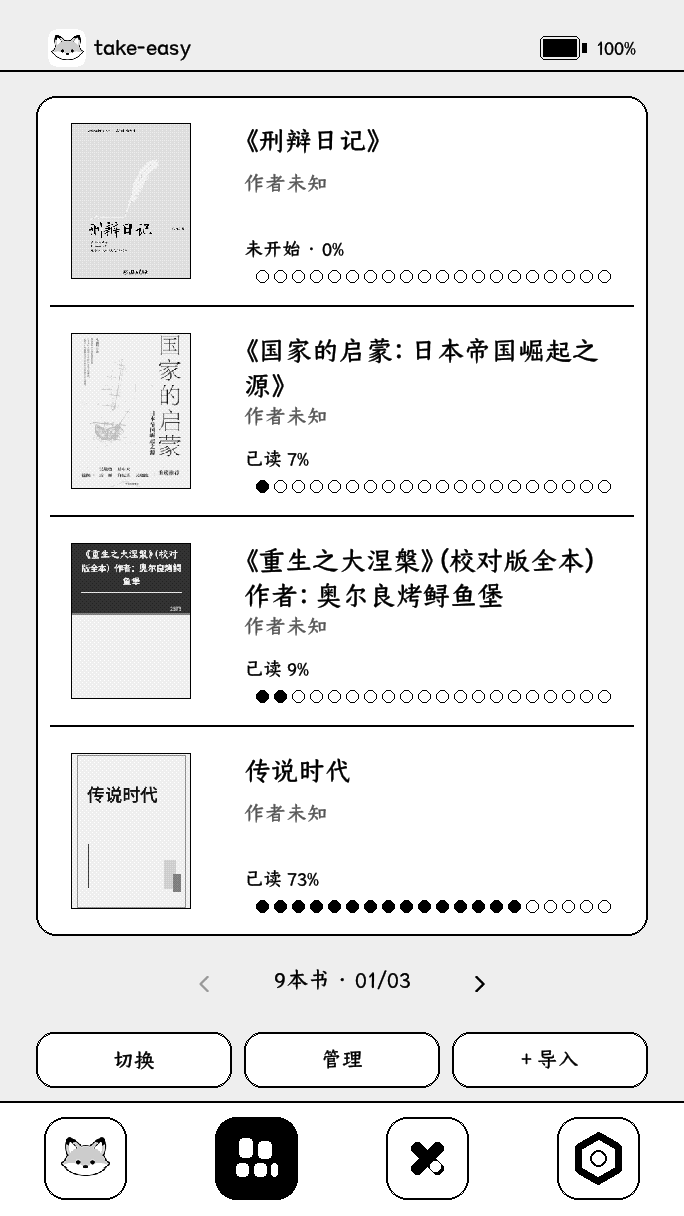
Read EPUB and TXT books, browse covers, and view reading progress. Adjust font, size, weight, line spacing, paragraph spacing, and margins. Choose portrait, landscape, vertical text, or inverted layouts. The reading data panel shows reading time and progress.
Weather, notes, and tools
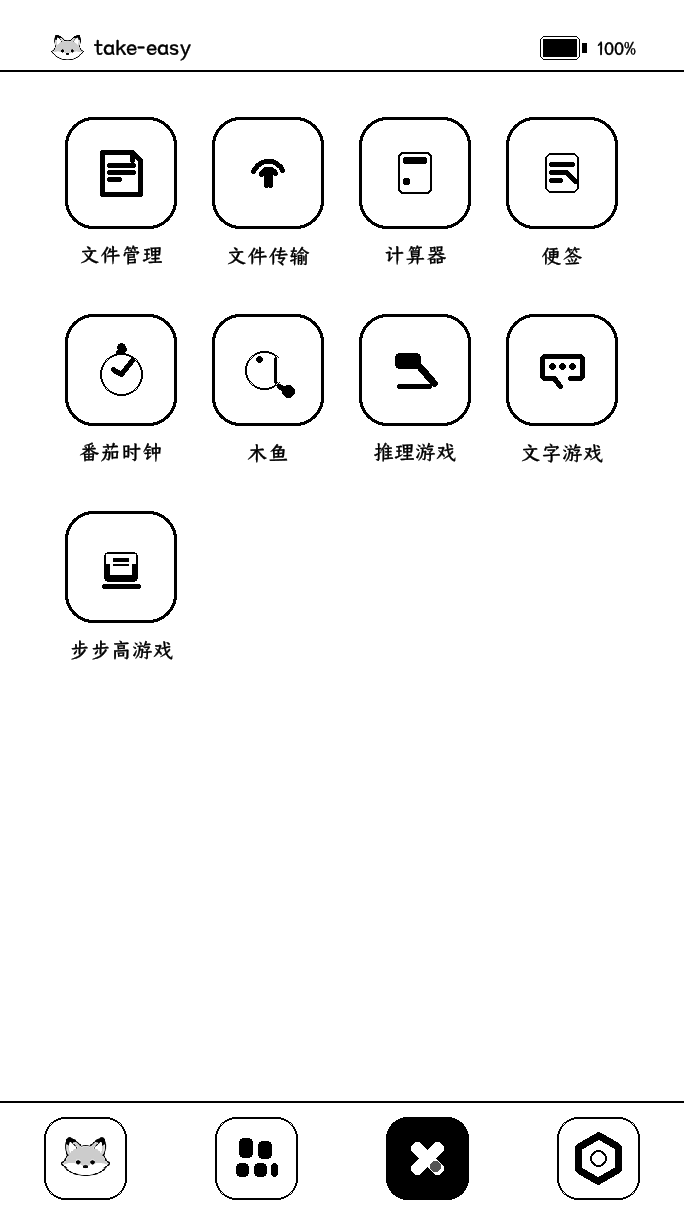
Switch the home-screen widget between weather, a traditional Chinese almanac, a wooden fish tapping tool, and quick notes. Open apps such as notes, a Pomodoro timer, and a calculator. Choose 心知, 和风, or 彩云 as the weather provider, then configure the location and API key.
Chinese text input supports full Pinyin and a nine-key Pinyin keyboard, with candidate paging, predictive input, and a user dictionary.
Lock screen and personalization
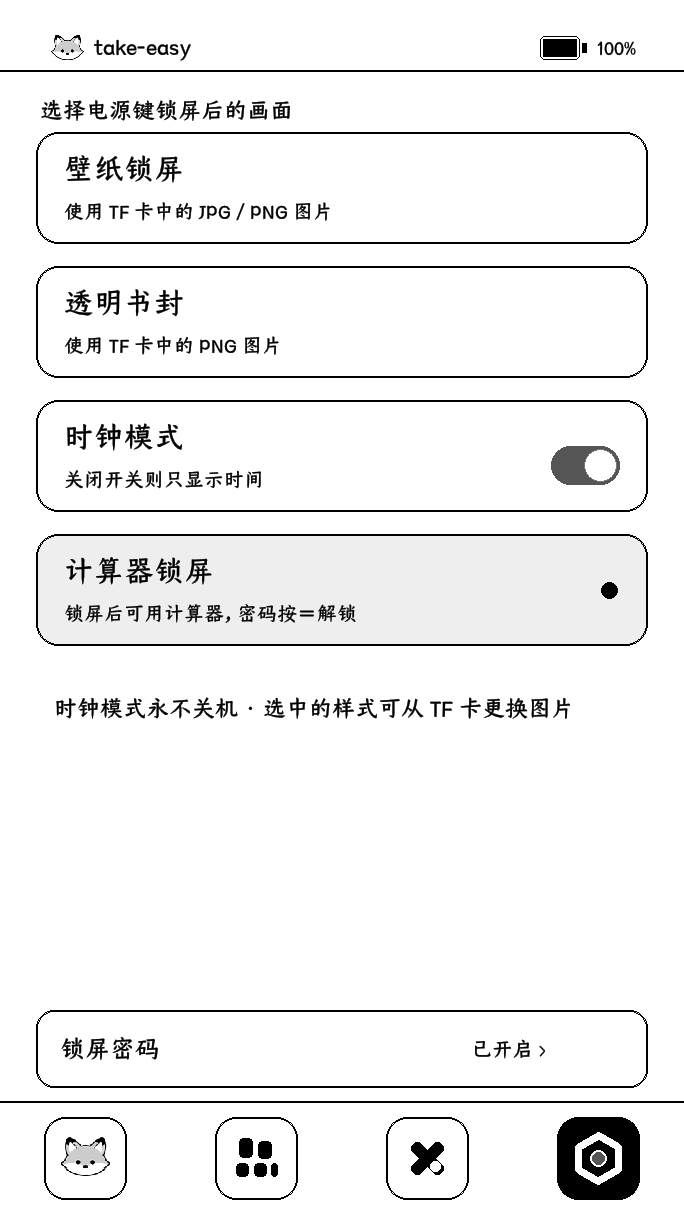
Choose a ticket-style, wallpaper, clock, or calculator lock screen, and set a lock-screen password. Add your own lock-screen images to LockScreens/ on the microSD card.
Usage and updates
See the official usage guide for controls, file directories, and configuration backups. To update, return to the online installation page and reinstall. First review its data-retention conditions and the changelog.
Take Easy is based on MindReset's Read Pico demo firmware and kiikoread, with an input method from YanReader.
takeeasy-cui/take-easy
0
Installation and usage help
Did this solve your problem?
Join our community