
ThingsOS
Read local EPUB and TXT books and WeRead on Read Pico, view popular highlights and reviews, and adjust fonts and page turns.
Thank you to flicker for providing a system for Read Pico.
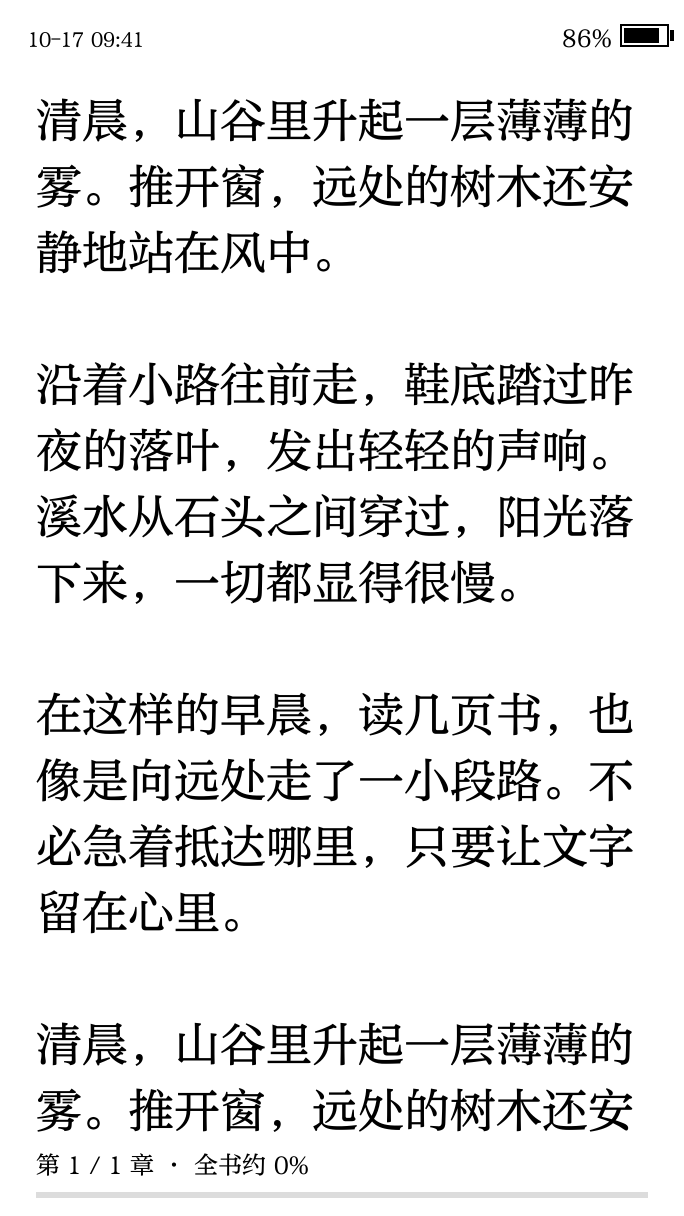
ThingsOS is a reading system for Read Pico, with interface, layout, and page-turning adjustments for local books and WeRead.
Before you start
Prepare a sufficiently charged Read Pico, a computer running desktop Chrome or Edge, and a USB-C data cable. Close other webpages, flashing tools, or terminals using the device's serial port.
Provide a microSD card for local books and cached WeRead content. Read Pico supports cards up to 512 GB, formatted as FAT32.
Install through the website
Open the website
Open the ThingsOS website in desktop Chrome or Edge and enter the installation wizard. Phones can browse the site and download files; online USB installation requires a computer.
Connect and install
Connect Read Pico with a USB data cable and select its serial port in the wizard. Use a full USB installation when installing ThingsOS for the first time or switching from another system. OTA files are only for devices with a compatible ThingsOS partition layout.
A full installation replaces the current system and resets internal settings, while retaining books on the microSD card. Back up important data first, then follow the installation prompts. Keep USB connected, the page open, and the computer awake until the device starts.
Add books and connect WeRead
Copy EPUB and TXT books to the microSD card's books directory, or start the device's transfer service and upload from a phone or computer browser.
For WeRead, connect to Wi-Fi, open 微读 on the device, and scan the sign-in QR code with WeChat. Sync your personal bookshelf and cache selected books on the card for offline reading.
Main features
Local library and WeRead
Local EPUB, TXT, and WeRead books share one library, with list and cover views. Use chapters, bookmarks, and saved progress to resume reading. WeRead supports popular highlights and book reviews. WeChat Official Account articles are coming soon.
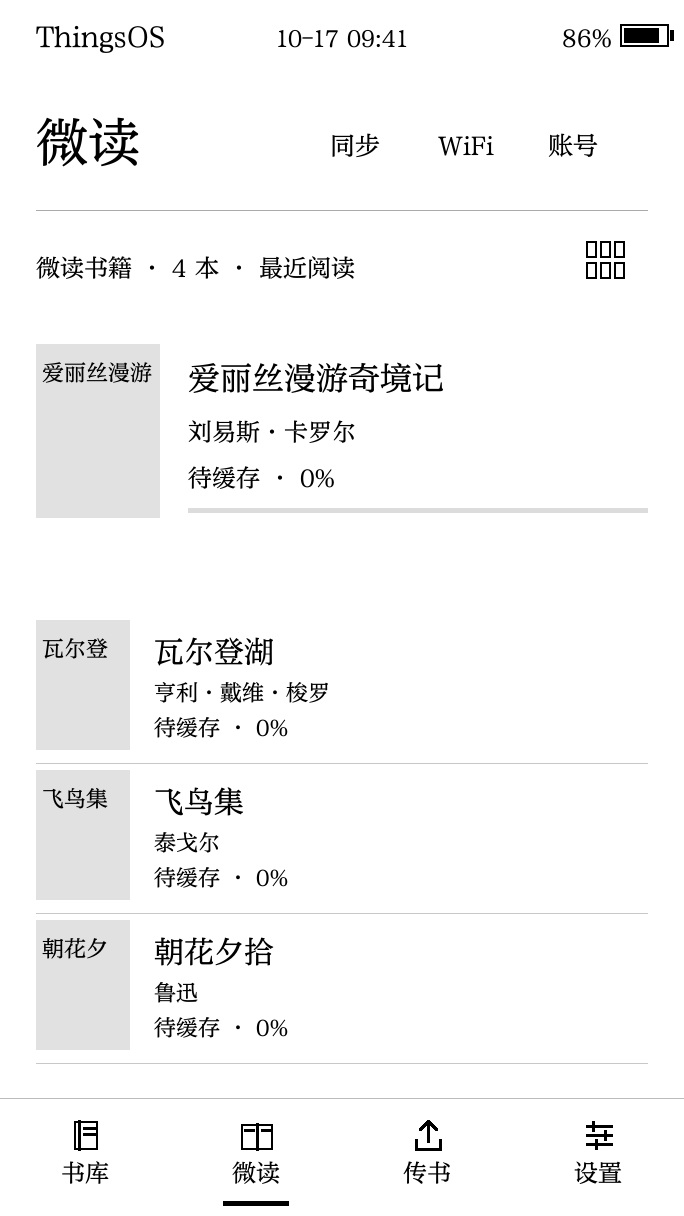
WeRead support is an unofficial integration. It only caches content your account is authorized to access; availability depends on book permissions and service interfaces.
Fonts, layout, and page turns
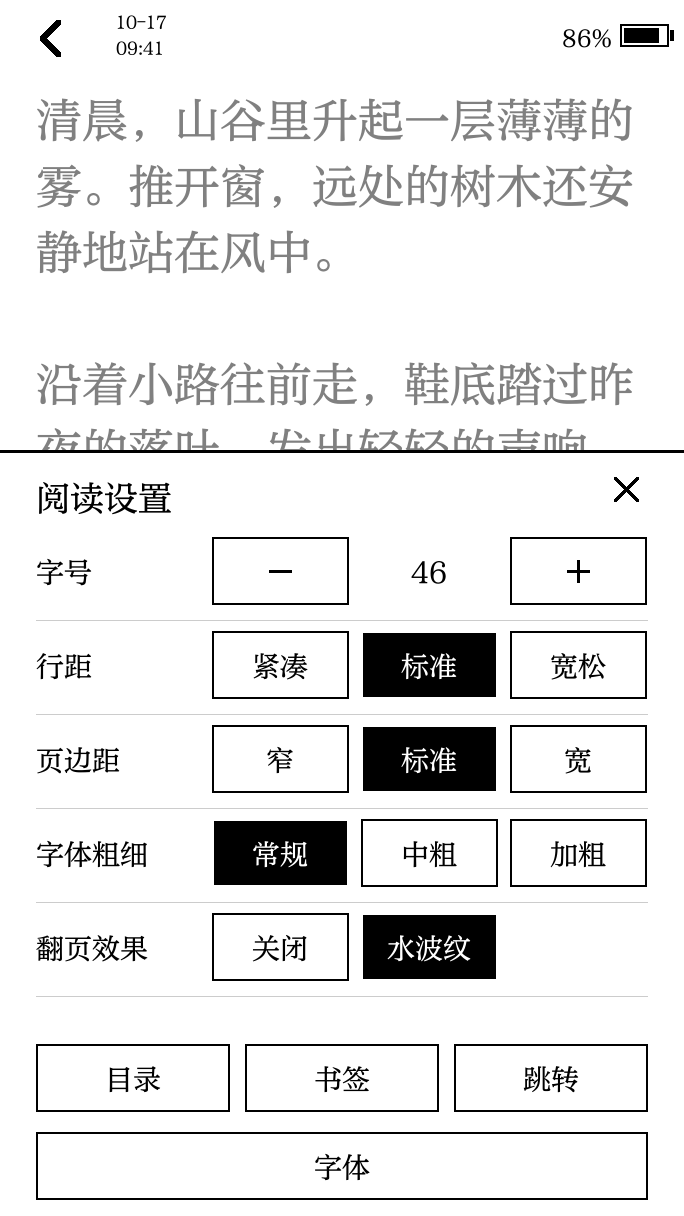
Switch between fonts and adjust font size, weight, line spacing, and margins. Add extra TTF fonts to /fonts at the root of the microSD card.
Enable the ripple effect for ordinary page turns and choose a periodic full-refresh interval to suit your reading preferences and clear ghosting.
Reading history and lock screen
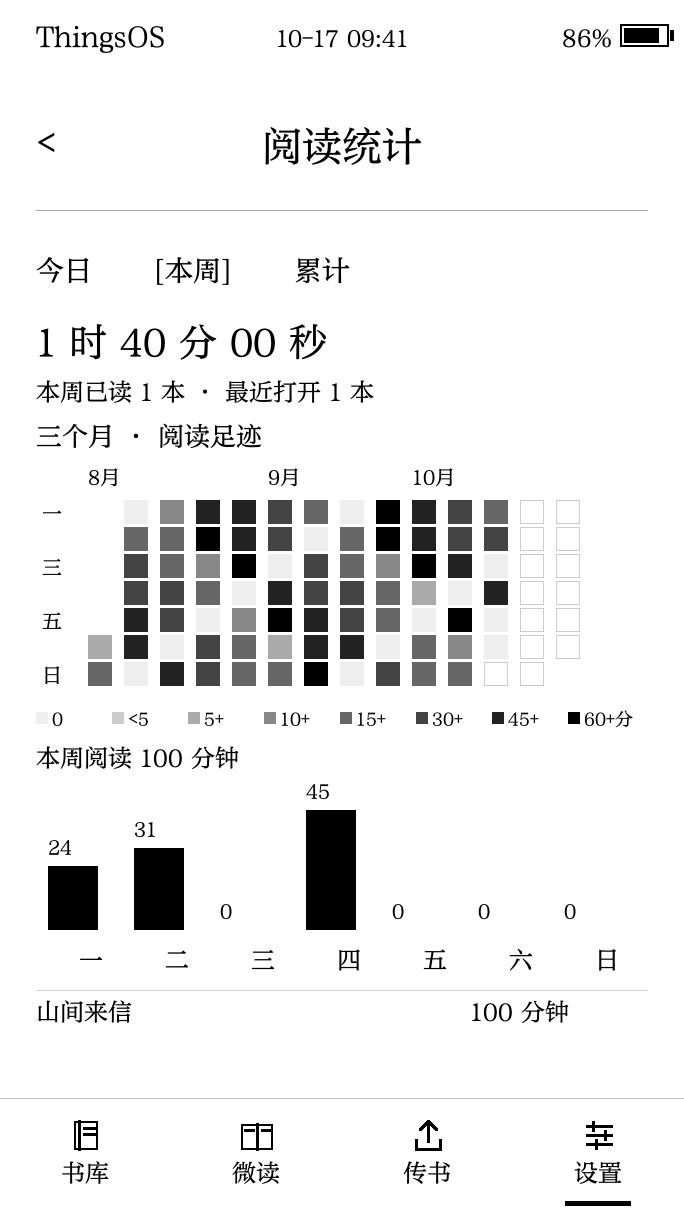
View daily reading time, weekly trends, and a reading heatmap. Use reading statistics, a selected book cover, or your own picture on the lock screen. Put JPG and PNG wallpapers in /wallpapers and choose one in the power and lock-screen settings.
Wireless transfer and updates
Upload books from a phone or computer browser through the device's hotspot or the same Wi-Fi network. Devices already running compatible ThingsOS can use OTA files from the device's firmware update page, following the website's instructions. See firmware information for versions, partitions, and checksums.
Other installation options
You can also follow the repository README and its linked firmware information to obtain installation files, partition details, and checksums before flashing.
flowflic/ThingsOS
1
Installation and usage help
Did this solve your problem?
Join our community