
kiikoread
kiikoread is a community reading system for an e-paper device, with EPUB and TXT support, imported fonts, multiple bookshelf and lock-screen styles, and WiFi, hotspot, and USB file transfers.
Thank you to Kiiko厂长 for developing and open-sourcing kiikoread (formerly Pico Reader) for Read Pico.
kiikoread Website
Web Installation and Bin Downloads
User Guide
Interface and features
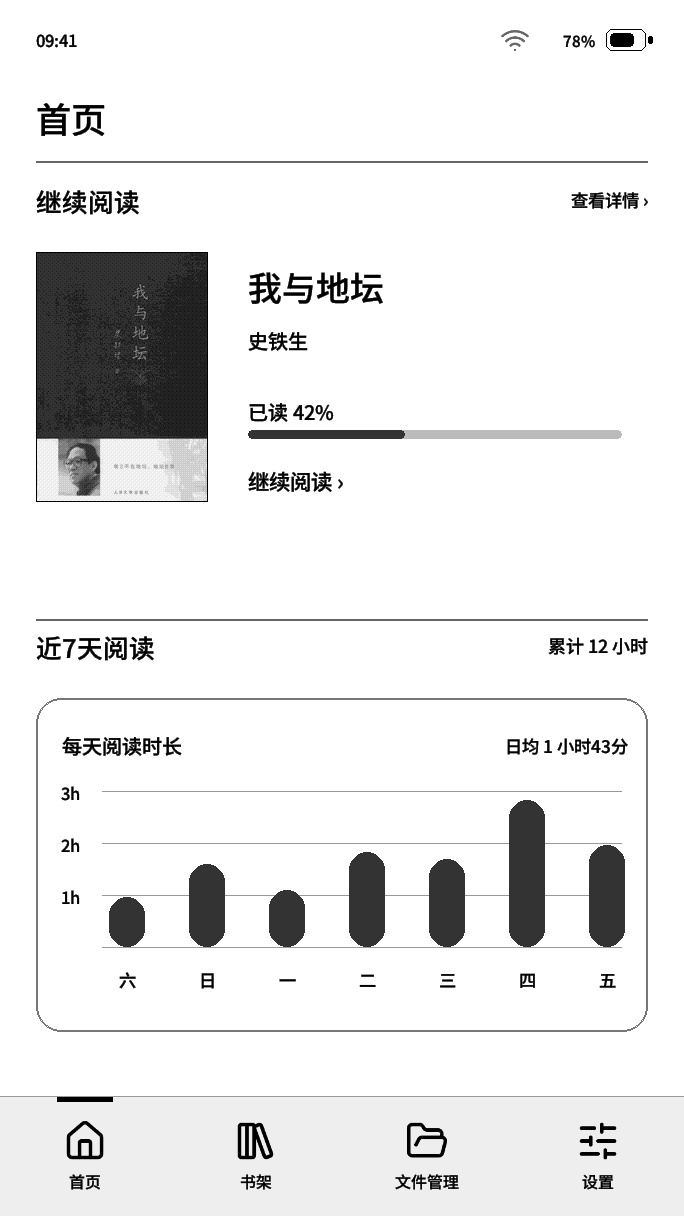
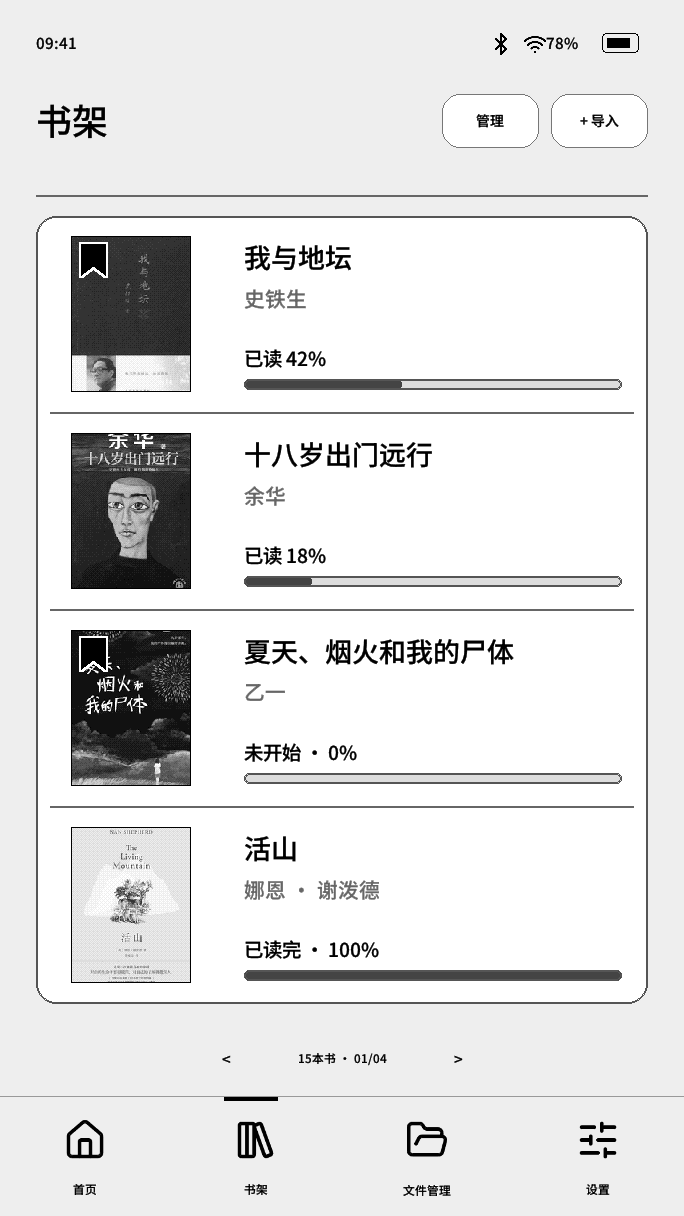
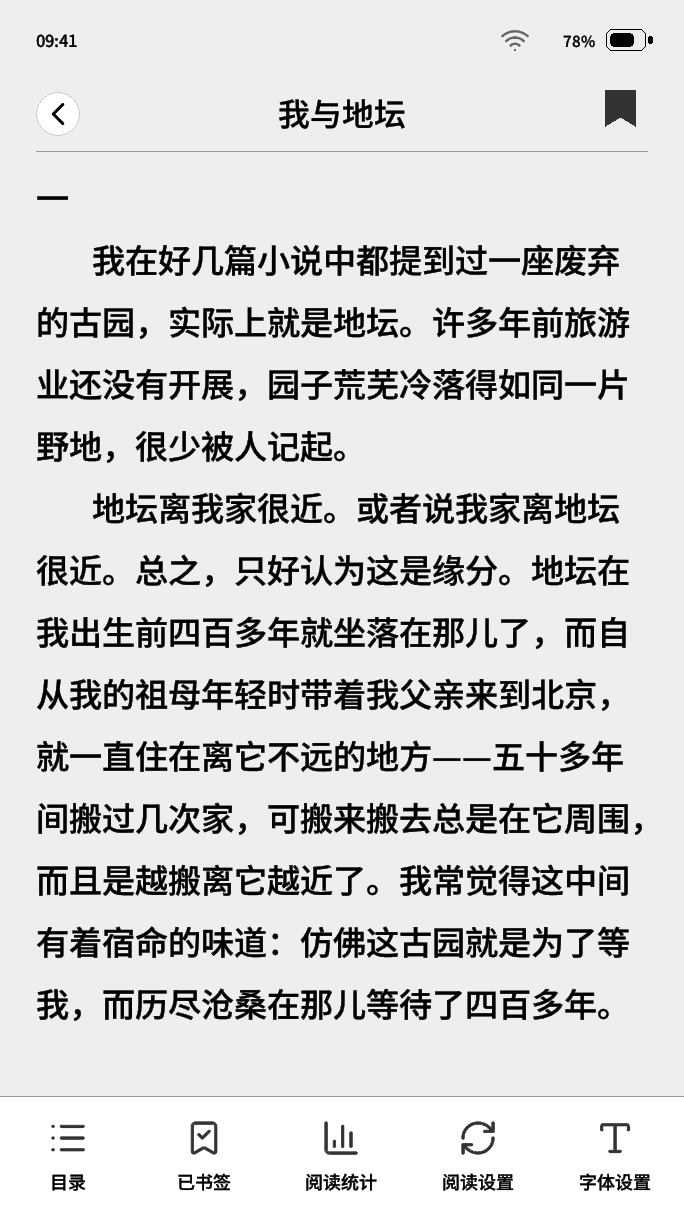

These interface illustrations are supplied by the project website. Refresh behavior depends on the device. Switch between more bookshelf and lock-screen styles in the website preview.
- Bookshelves and lock screens: acrylic, dark rail, and list bookshelves; reading ticket, image wallpaper, and bookshelf collage lock screens.
- Reading layout: EPUB and TXT, imported fonts, and adjustments for font size, line spacing, margins, and first-line indentation.
- Page controls: taps, horizontal swipes, Bluetooth page turners, and configurable short presses on the three buttons and a long press on the center button.
- Refresh options: normal, fast, and ripple modes for the main pages; configurable full-refresh intervals and manual full refresh while reading.
- File transfers: separate WiFi, device hotspot, and USB entries, with books and fonts stored on the microSD card.
- Records and maintenance: progress, bookmarks, reading time, profile, and status-bar signature; automatic sleep, configuration backups, microSD updates, and online OTA.
Before you start
Prepare a sufficiently charged Read Pico, a computer running desktop Chrome or Edge, and a USB-C data cable. A charge-only cable cannot flash the device. Close other webpages, flashing tools, or terminals using the device's serial port.
Use full web installation for a first installation, system repair, or base-package change. Devices with a compatible base package can also update through microSD or WiFi.
Open the website and choose a release
Open kiikoread Installation and Downloads in desktop Chrome or Edge. Choose the latest official release or a listed historical release. Review its version, update time, and changelog, then find 连接墨水屏,刷入… (Connect the e-paper device and install…). The button ends with the selected version.
Connect the device and select its serial port
Connect the device with the USB data cable and click the connect button. In the browser's picker, select the corresponding USB serial port and click Connect. If you are unsure which entry to use, cancel the picker, unplug and reconnect the device, and look for the newly added port.
If the connection fails, open 设置 → 升级和恢复 → BOOT 刷机 (Settings → Upgrade and Restore → BOOT Flashing) on the device and enter BOOT mode. Wait for the computer to detect the port again, then retry. If the system cannot start, follow the website connection instructions.
Confirm installation as instructed
Once connected, select 安装 (Install) in the dialog, check the target release, and follow the confirmation prompts.
Back up data you want to keep
Flashing replaces the current system. Selecting 擦除设备 (Erase device) clears internal settings and reading records; settings from another system are not guaranteed to be compatible. Back up data you want to keep and read the actual prompts in the installer. Web flashing does not delete books, fonts, or images on the microSD card.
Wait for installation to finish
The website shows installation progress. Keep USB connected and the page open. Do not unplug the cable or let your computer go to sleep. Wait for the completion message, finish as instructed, and confirm that the device restarts.
Import your books and fonts
No books or additional fonts are included. Prepare a FAT32 microSD card, up to 512 GB. Put EPUB / TXT files in books, fonts in fonts, and images in pictures, then open books from the bookshelf. File Manager also offers WiFi, device hotspot, and USB transfers. See the user guide for the full instructions.
Existing users: microSD and online updates
Choose a release on the Installation and Downloads page, download its microSD update Bin, name it Pico-update.bin, and place it in the card's root directory. Open 设置 → 升级和恢复 → 系统升级 → TF 卡升级 (Settings → Upgrade and Restore → System Upgrade → TF Card Upgrade). Keep this filename for compatibility with existing firmware.
MicroSD updates require a compatible dual-slot base package from rc72 or later; online OTA requires a compatible base package from rc79 or later. After connecting WiFi, use System Upgrade to check for updates, read the changelog, and confirm download and installation. Earlier releases or other systems need full web installation first. See the update guide for compatibility details.
The application Bin is only an update image; do not flash it to address 0 as a full installation package. Official firmware and checksum files are published in GitHub Releases. Refer to the website and releases for current version information.
Installation and Usage FAQ
Restore the Official Demo System
Source and other installation options
kiikoread is maintained by the community. You can also follow the repository's instructions to build and flash the system, or fork it for further development.
wegooo-cell/read-pico-reader
22
Did this solve your problem?
Join our community
CrossMuxNew
CrossMux preserves the original CrossPoint reading experience, with first-class Chinese support at its core. It combines the best features of the major branches and adds exclusive playful extensions.
RickyOSNew
Open a book. Leave a little time for yourself. A reading and lifestyle system by Ricky AI Studio.